
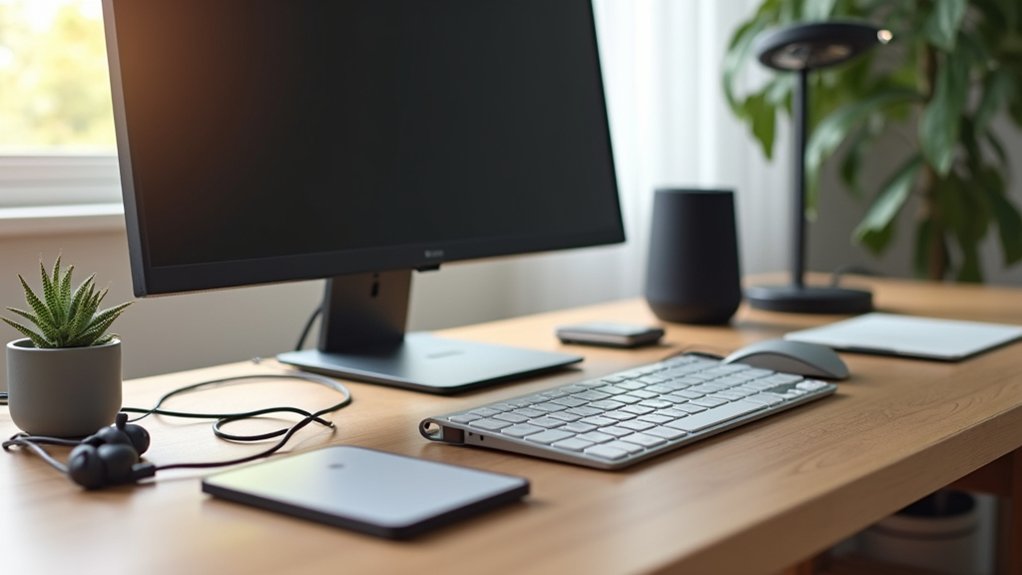

Most people don’t realize your video-call image is usually limited by lighting, not your webcam. You can fix that for under $100 with a smart bulb or slim LED light bar placed slightly above eye level, plus a compact smart plug to automate your desk gear and reduce cable clutter. Add a budget USB mic or headset and your setup sounds sharper, too—but the real gains come when you connect everything with one simple routine…
Start With the Best Smart Home Office Upgrades Under $100
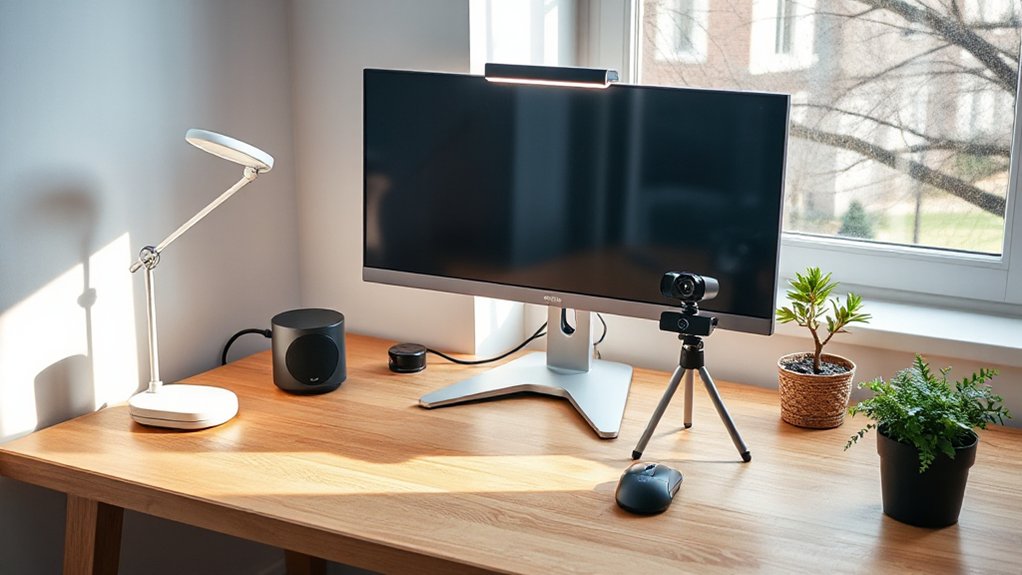
If you want your home office to feel sharper and work smarter without a big spend, start with upgrades under $100 that fix daily friction points—lighting, power, audio, and cable chaos.
Add a dimmable smart bulb or LED light bar with warm-to-cool presets so your screen glare drops and your video calls look clean.
Swap in a compact smart plug or USB-C power strip to centralize charging and cut cord sprawl.
For audio, a clip-on USB mic or budget headset boosts clarity more than a fancy webcam.
Lean into Smart desk organization: adhesive cable clips, an under-desk tray, and a vertical laptop stand.
Finish with ergonomic accessories—wrist rest, footrest, and a seat cushion—to keep posture locked in.
Set a Realistic Smart Home Office Budget (and Priorities)
Those under-$100 wins add up fast, so set a budget before you start stacking smart gear on your desk. Decide what you’ll spend this month versus next quarter, and reserve 10–15% for cables, mounts, and returns.
In your budget planning, list your daily pain points: bad lighting, noisy calls, slow Wi‑Fi, or cluttered charging.
Then do equipment prioritization with a simple rule: fund what improves comfort and output first, then what looks sleek. Put ergonomics (lamp, webcam height, mic) ahead of “nice-to-have” extras.
Price-check across brands, watch for bundles, and don’t forget subscription costs for cloud storage or security features.
Track everything in one note so you don’t buy duplicates.
Automate Your Home Office With Smart Plugs
Smart plugs let you put your desk essentials on a clean schedule—auto-on before your first call, auto-off when you’re done—so your setup runs like a routine, not a reminder.
You can also bundle devices into simple scenes (work mode, break mode) that trigger with a tap or voice command.
And because most smart plugs track usage in their app, you’ll monitor energy use remotely and spot the power-hungry gear that’s quietly inflating your bill.
Schedule Devices And Routines
Once you’ve mapped out your workday, scheduled devices and routines let your home office run on autopilot with a few well-placed smart plugs. Set your desk lamp and monitor to switch on 10 minutes before start time, so you walk into a ready-to-work setup, not a tangle of buttons.
For Device synchronization, tie your plug schedules to your smart speaker or phone calendar so everything powers up together.
Lean into Routine customization: create “Focus Mode” to power your task light, charge your laptop, and mute a diffuser; then “Wrap-Up” to shut down peripherals and turn on a warmer ambient lamp. Add a lunchtime routine to pause chargers and reduce distractions.
You’ll keep your space polished, consistent, and effortless daily.
Monitor Energy Use Remotely
Even if you’ve nailed your schedules, you’ll get more control by tracking what each plug actually draws throughout the day. Choose a smart plug with Energy monitoring so you can see real-time watts and daily kWh in the app, then spot silent drains like speakers, chargers, or a “sleeping” printer.
Use those insights to set tighter rules: cap a space heater’s runtime, shut down a monitor after hours, or stagger your gear to avoid peak spikes.
With remote control, you can cut power from your phone when you forget to switch something off, or reboot a frozen router without crawling under the desk.
Aim for compact plugs that won’t block adjacent outlets, and label each device in-app for clean, mistake-proof control.
Improve Focus With Smart Home Office Lighting Settings
When your lighting shifts with the task in front of you, you’ll stay sharper and feel less drained by midafternoon. Set a “work” scene with a cooler color temperature (around 4000–5000K) to keep contrast high and eyes alert. Then switch to warmer tones (2700–3000K) for reading or wrap-up to ease tension.
Layer your setup: use ceiling or wall lamps for soft ambient lighting, then add a focused desk lamp angled across your workspace to cut screen glare. If your bulbs support dimming, keep brightness consistent as daylight changes so you’re not squinting by late day.
Save two or three scenes in your app, and you’ll swap moods in seconds.
Use a Voice Assistant for Reminders, Timers, and Meetings
If you already keep your hands on the keyboard and your eyes on the screen, a voice assistant can handle the small-but-constant overhead of timekeeping and follow-ups. Set voice-triggered timers for sprint work, breaks, and “last call” before you hop onto a video meeting.
Create daily reminders for stand-ups, invoice sends, or a quick end-of-day inbox sweep, so nothing slips when you’re deep in flow.
Link your calendar and contacts, then say, “What’s next?” to get a clean rundown without tab-hopping. Ask it to start meetings, dial in, or message you running two minutes late.
For polish, place the device off-camera, mute its wake sound, and use a concise naming system (“Client A prep,” “Submit report”).
Cut Noise Distractions With Smart Home Office Tools
When your home office gets noisy, you can shut out distractions fast with smart noise-canceling headphones that adapt to changing sound levels and keep calls crisp.
You’ll stay in flow by automating a white noise machine to turn on during focus blocks and ease off when meetings start.
For a more polished setup, you can add a discreet sound-masking speaker placement that evens out background chatter without sounding like static.
Smart Noise-Canceling Headphones
Ever wonder why your focus evaporates the moment the neighbors start mowing or a meeting runs long? Smart noise canceling headphones give you instant control over your sound environment, without changing your workspace.
Look for adaptive ANC that reacts to sudden spikes, plus a transparency mode so you can catch a delivery or a quick question.
Multipoint Bluetooth lets you jump from laptop to phone without re-pairing, and a reliable mic with sidetone keeps your voice natural on calls.
For long sessions, prioritize lightweight frames, breathable pads, and USB-C fast charging.
Use companion apps to tune EQ, set auto-pause, and layer ambient soundscapes for steady concentration.
Choose a neutral colorway for a polished, desk-ready look, too.
White Noise Machine Automation
Noise-canceling headphones handle your personal bubble, but a smart white noise machine smooths out the whole room so distractions don’t sneak in the moment you take them off. You’ll get steadier focus when you automate it to start with your workday and fade out at lunch or after calls.
Choose a model with app control and multiple ambient sound profiles (rain, fan, brown noise), then set a favorite preset for deep work. Link it to a smart plug or routine so it turns on when your desk lamp powers up, and shuts off when you leave.
Use a gentle nighttime schedule, too—consistent masking can protect sleep quality without blasting volume. Keep it stylish: a compact, fabric-wrapped unit looks intentional beside your monitor, not like clutter.
Sound Masking Speaker Setup
Although a white noise machine works in a pinch, a dedicated sound-masking speaker setup gives you fuller, more even coverage—so chatter in the hallway and the neighbor’s lawn crew fade into the background instead of spiking your attention.
Place two small smart speakers at opposite corners of your office, aimed toward reflective surfaces, and run a consistent broadband loop at low volume. You’ll get smoother sound masking without a “hiss” hotspot.
Use your phone to measure levels from your chair, then set a schedule: start at login, dip during calls, and shut off after hours.
Pick neutral, fabric-front speakers that blend with decor, and add a simple routine that boosts masking when a door sensor opens for better acoustic privacy.
Upgrade Calls With a Better Webcam, Mic, and Lighting
When your calendar stacks up with video meetings, your built-in laptop camera and mic can make you look dim and sound tinny—no matter how sharp your talking points are. Upgrade your Video conferencing setup with a 1080p webcam (or better) and reliable autofocus; it’s the fastest way to raise Camera quality and keep your face crisp instead of smeared.
Pair it with a USB condenser mic or a compact dynamic mic plus a simple boom arm, and aim it at your mouth, not your keyboard. Add closed-back headphones to stop echo.
For lighting, skip harsh overheads and place a small ring light or soft LED panel at eye level, 18–24 inches away. Set brightness low, color temperature around 4000–5000K, and you’ll look polished, not washed out.
Tie Your Smart Home Office Together With Simple Routines
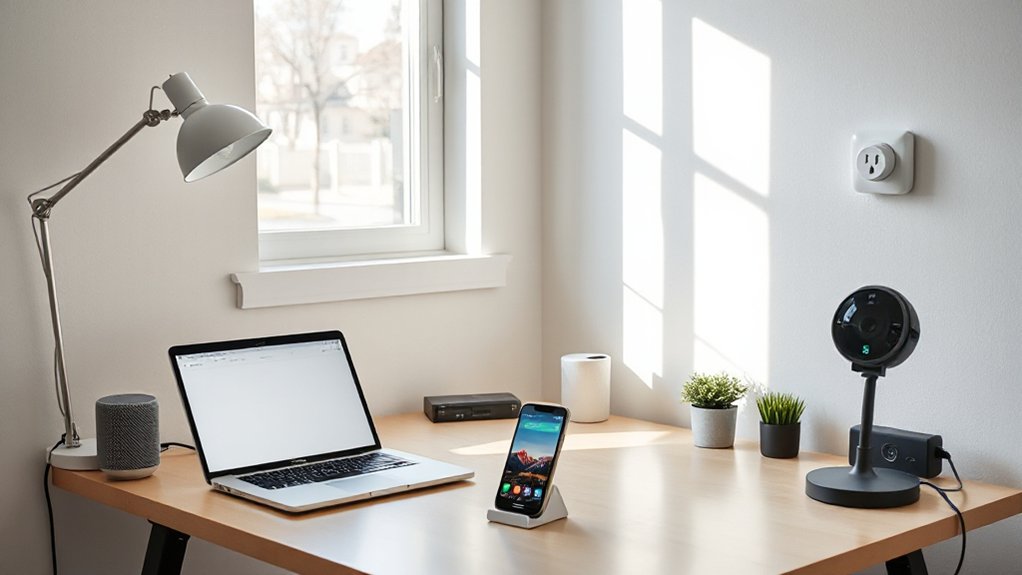
Once you’ve upgraded the gear on your desk, you’ll get the biggest day-to-day payoff by linking it all with a few smart routines that run in the background.
Start with a “Workday On” scene: lights to a clean 4000K, thermostat to your comfort band, and a smart plug powering monitors and your desk lamp.
Add a “Call Ready” routine for Remote collaboration that launches your calendar app, toggles Do Not Disturb, and sets a subtle key light.
Keep it polished: schedule a mid-afternoon shift to warmer light to reduce glare, then a “Wrap” routine that shuts down outlets, silences notifications, and cues a focus playlist.
Pair these automations with ergonomic accessories—like a smart sit-stand reminder or timer—to keep posture and energy consistent.
Conclusion
You don’t need a pricey overhaul to build a smarter home office—you just need the right $20–$100 upgrades. Swap in a smart plug to tame cable chaos, set lighting scenes for focus and flattering calls, and add a budget USB mic for instant clarity. Want a motivating number? Harvard research found better lighting can boost productivity by up to 23%. Tie it all together with simple routines, and your desk feels polished, calm, and efficient.