
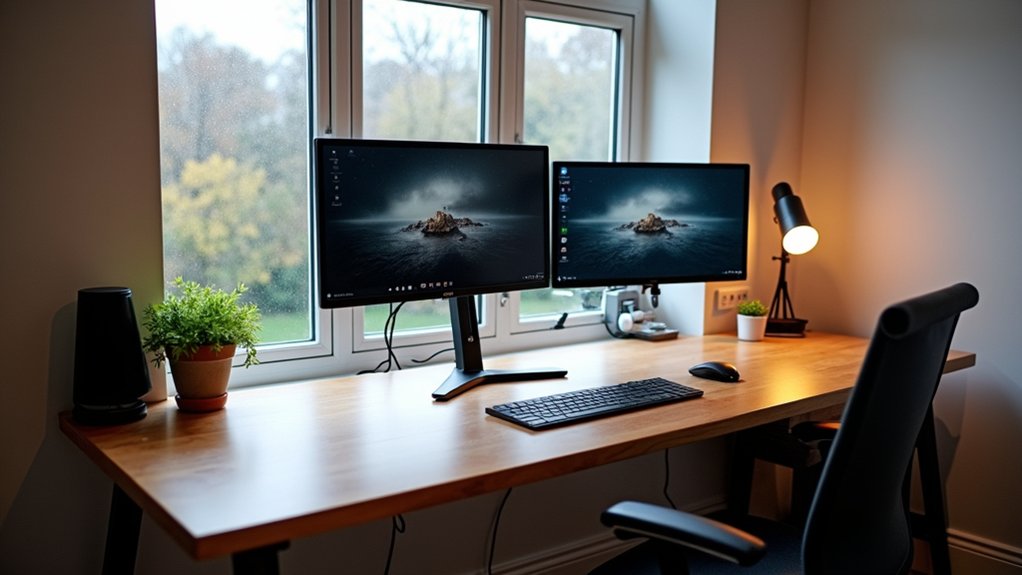

Over 40% of UK workers now spend at least part of the week working from home, and your setup matters more than ever. You can upgrade fast by prioritising what actually breaks your day: patchy Wi‑Fi, harsh lighting on video calls, and rooms that swing from cold to stuffy. Add a Wi‑Fi 6 mesh, circadian smart bulbs, and a sensor-led smart thermostat, then lock it down with routines and smart security—starting with the one change you’ll feel immediately…
Start With a Smart Home Office Priority Checklist
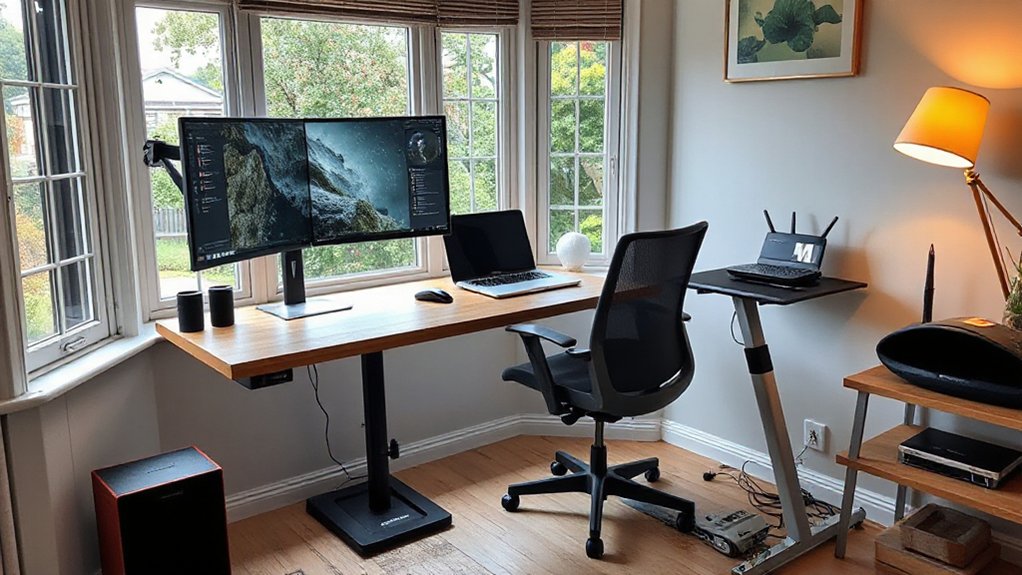
Before you buy another gadget, map out a smart home office priority checklist that matches how you actually work day to day. Track your pain points for a week: glare at 9am, cold hands at 3pm, noisy street calls, cable clutter, or slow Wi‑Fi in the spare room. Rank fixes by impact, then budget: lighting, comfort, connectivity, audio, and security.
Next, audit what you already own so you don’t double-buy. Note device standards, app requirements, and Product compatibility across bulbs, plugs, routers, and monitors. Add constraints like landlord rules, socket locations, and desk space.
Finally, bake in energy efficiency: set targets for standby power, schedule high-draw gear, and prioritise sensors and timers that cut waste without adding friction.
Pick a UK Smart Platform (Alexa, Google, HomeKit)
Once you’ve ranked your biggest office pain points and checked what kit you already own, choose a smart platform to keep everything under one roof: Amazon Alexa, Google Home, or Apple HomeKit.
Alexa suits bargain hunters and broad Smart device compatibility, with loads of UK plugs, bulbs, and routines.
Google Home feels slick for calendar-driven days, offering fast Voice assistant integration and strong multiroom control.
HomeKit prioritises privacy and reliable automations, ideal if you’re already on iPhone, iPad, and Mac.
Before you buy anything, check each brand’s UK availability, supported hubs (Echo, Nest, HomePod), and whether your must-have devices support Matter.
Keep one primary platform, then standardise naming (Desk Lamp, Focus Lights) so voice commands stay frictionless.
Fix Home Office Wi‑Fi With a Mesh System
If your smart platform’s solid but your video calls still glitch, a mesh Wi‑Fi system is the upgrade that actually shows up in day‑to‑day work. You’ll want to choose the right mesh for your UK setup—Wi‑Fi 6/6E, strong backhaul, and enough nodes for your floorplan—so you don’t just spread weak signal around.
Then you’ll optimise node placement (line‑of‑sight where possible, away from thick walls and appliances, and not too far apart) to lock in fast, consistent coverage from desk to kitchen.
Choosing The Right Mesh
Why does your Wi‑Fi feel rock‑solid in the kitchen but collapse in your home office? You’re likely riding a router that can’t punch through UK brick walls, foil-backed insulation, or busy 5GHz channels. Choose a mesh kit designed for consistent wireless coverage, not just headline speeds.
Start by matching Wi‑Fi standard to your workload: Wi‑Fi 6 handles video calls and multiple devices smoothly; Wi‑Fi 6E helps if you’ve got lots of neighbouring networks and compatible kit. Check for a dedicated backhaul (or tri-band) to keep office traffic fast, plus gigabit Ethernet ports for a wired desk setup.
Prioritise strong app controls, WPA3 security, and automatic updates. Finally, buy for mesh scalability so you can add nodes as your space or gear grows later.
Optimizing Mesh Node Placement
You’ve picked the right mesh kit; now you’ve got to place the nodes like they’re part of your layout, not an afterthought. Start by putting the main router near your modem and as central as cables allow, then place the next node halfway to your office, not inside it.
For reliable backhaul, keep nodes within two rooms, line-of-sight where possible, and off the floor on a shelf. Avoid thick party walls, radiators, mirrors, and kitchen appliances that soak up signal.
If you’re in a typical UK terrace, stagger nodes up the stairs to bridge floors. Use the app’s signal map for mesh optimization, then tweak node placement until your desk hits strong RSSI and steady latency for calls.
Add Smart Lighting for Focus and Video Calls
Add smart lighting to sync your workspace with your day: cooler, brighter circadian tones in the morning keep you sharp, then warmer light in the afternoon helps you wind down without crashing.
For video calls, you can lock in a consistent key light and colour temperature so your face looks natural even when the UK weather flips from sun to grey.
Set scenes in your app or via voice control, and you’ll switch from “focus” to “on‑camera” in seconds.
Circadian Lighting For Focus
If your home office lighting stays the same from morning to late afternoon, your focus and on-camera look usually pay the price. Circadian lighting fixes that by syncing colour temperature and brightness to your circadian rhythm, so you feel switched on without overdoing caffeine.
Set smart bulbs or a desk lamp to run cool, bright whites (around 5000–6500K) for deep work, then gradually warm and dim (2700–3000K) after lunch to reduce eye strain and the 3pm slump.
Use schedules tied to sunrise/sunset in your UK postcode, or trigger scenes with a single shortcut.
Keep lighting ambiance consistent across your room by matching bulb tones in ceiling and task lights, so your eyes don’t constantly readjust.
Video Call Lighting Control
Circadian schedules keep your energy steady, but video calls demand lighting that flatters your face and stays consistent from one meeting to the next. Add a smart key light or bulb behind your webcam, then save a “Calls” scene with higher ambient brightness and a neutral color temperature (around 4000–5000K) to prevent yellow casts.
Use voice control or a Stream Deck shortcut to trigger scenes instantly. Pair a motion sensor to bring lights up when you sit down, and set an automation that locks brightness during meetings so passing clouds won’t ruin exposure.
If you work evenings, switch to a slightly warmer 3500K while keeping output high enough to avoid grainy webcams. You’ll look sharper, feel more alert, and waste less time tweaking settings.
Warm Your Home Office With Smart Heating Controls
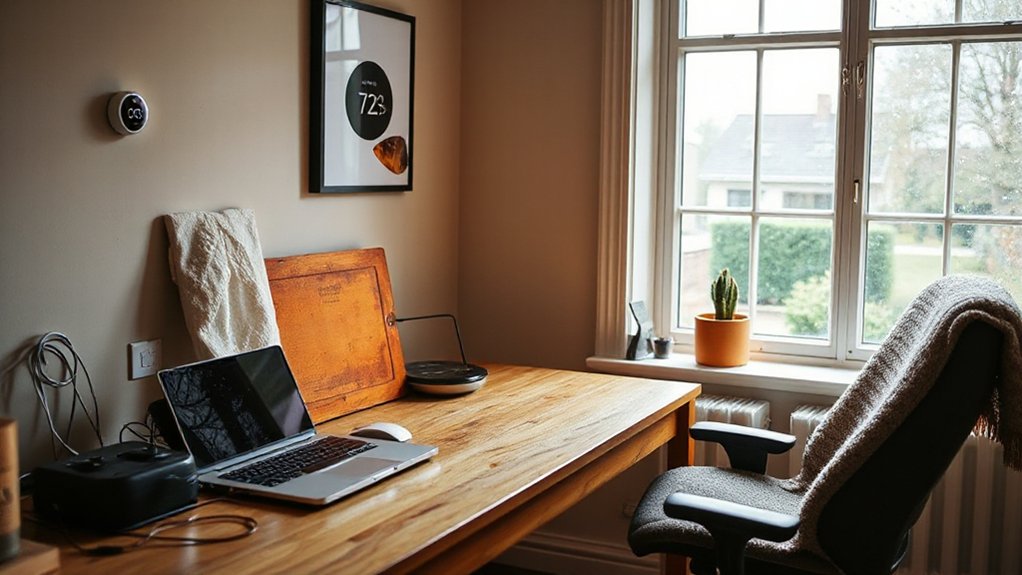
While your laptop and meetings can run hot, your spare room office often stays stubbornly chilly—so smart heating controls let you warm the space you’re actually using without blasting the whole house.
Fit a Smart thermostat with room sensors, then set a weekday schedule that pre-heats your office 20 minutes before you log on and drops back at lunch.
For UK homes with combi boilers or TRVs, add smart radiator valves to prioritise the study and keep bedrooms cooler.
Use geofencing so heat cuts when you pop out, and enable open-window detection to avoid wasting energy during quick air-outs.
When your hands are full, a voice command can nudge the temperature up a degree.
Track usage in the app to fine-tune comfort versus cost.
Reduce Call Noise With ANC and Smart Mics
Once you’ve got your office temperature sorted, the next upgrade is making your voice sound clean on calls even when the rest of the house gets noisy. Pick over-ear headphones with strong ANC noise cancellation to tame kettles, traffic, and a neighbour’s DIY. Look for transparency mode too, so you can hear the doorbell without ripping them off mid-Teams.
Then level up your input. Smart microphones with beamforming and AI noise suppression keep your voice forward and room echo down. A compact USB-C desk mic or a wireless lav is ideal if you move between sit-stand positions. Place it 15–20cm from your mouth, aim it off-axis, and add a small pop filter.
You’ll sound broadcast-ready, even in open-plan living spaces.
Secure Your Home Office With Smart Locks and Cams
If you’re taking client calls and storing work kit at home, you can’t treat security as an afterthought. Upgrade to a retrofit smart lock that fits a UK euro cylinder and supports auto-lock, tamper alerts, and time-limited guest codes for cleaners or deliveries.
For Smart lock security, prioritise PIN plus app control, encrypted Bluetooth, and a physical key override in case the battery dies. Pair it with a doorbell cam and one indoor camera covering your office entry, not your desk, to protect privacy.
Use camera placement strategies: mount at eye level, angle away from windows to reduce glare, and cover blind spots like side gates and back doors. Add signage and enable two-factor logins.
Automate Your Smart Home Office Day (Routines)
Because your workday already runs on calendars and notifications, you can let smart routines handle the repetitive bits that drain focus. Set a “Start Work” scene that turns on desk lights to 5000K, powers your monitor plug, and drops the thermostat a notch for alertness.
With a single voice command, mute smart speakers, enable Do Not Disturb, and start a focus timer. Use routine automation tied to UK sunrise/sunset so lighting stays consistent through grey afternoons.
Schedule “Lunch” to access the front door for deliveries, pause meeting mics, and switch to softer lighting.
End the day with “Shut Down”: cut standby power, log off Wi‑Fi for work devices, and arm cameras automatically.
Conclusion
With these smart upgrades, you’ll turn your UK home office into a focused, flexible hub. Prioritise pain points, pick a platform, then perfect performance with mesh Wi‑Fi and circadian smart bulbs for crisp calls and calmer eyes. Keep comfort constant with sensor-led heating, cut chatter with ANC and smart mics, and lock down privacy with auto-locks and cameras. Finally, schedule smooth routines—start, stretch, shutdown—so your day stays streamlined, secure, and seriously productive.