


If you work from home, you want your desk to feel intentional, not crowded. You can start with smart essentials that earn their footprint: a slim wireless charger, a compact USB‑C hub, and an adjustable monitor light bar that cuts glare without adding bulk. Add a low-profile wrist rest, a clean monitor riser, and magnetic cable clips to keep lines crisp. Then you’ll notice what still breaks the flow…
How to Choose Smart Desk Accessories (Size, Budget, Devices)
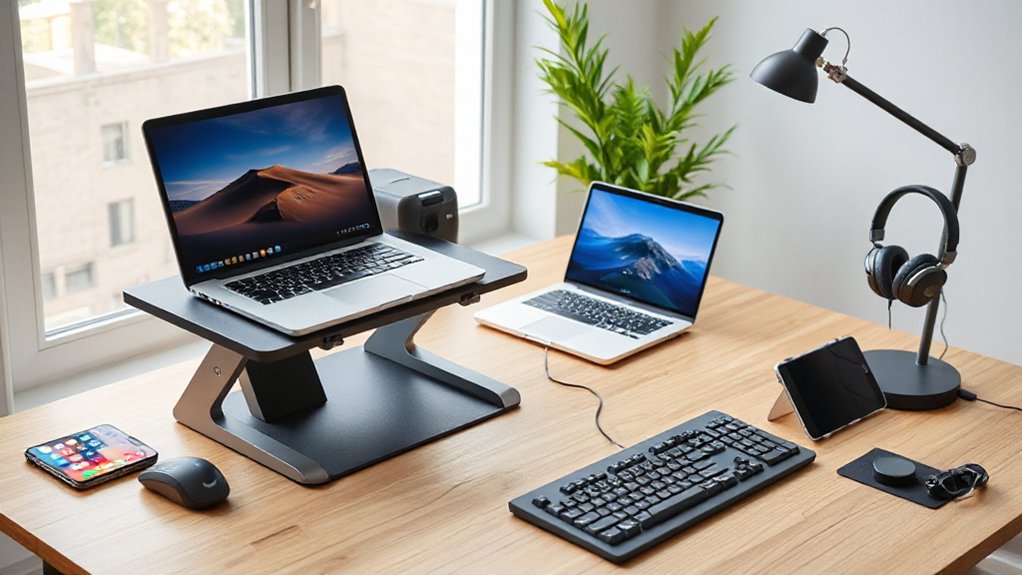
If you start with your space, you’ll buy smarter: measure your usable desktop (and the “air” above it), then choose accessories that stack vertically, tuck under a monitor, or mount to the edge to keep your surface clean.
Prioritize ergonomic design where your hands land most: a slim wrist rest, a low-profile keyboard tray, or a monitor riser that sets eye level without bulky legs.
Next, set a budget by upgrade impact, not hype. Spend more on touchpoints and daily comfort; save on purely decorative extras.
Match accessories to your devices’ footprint—laptop, external monitor, tablet—so cables route neatly and stands fit precisely.
Favor durable materials like powder-coated steel, FSC wood, or recycled aluminum for lasting aesthetic appeal and minimal visual noise.
Smart Charging Upgrades: USB-C Hubs, Docks, Wireless Pads
Because charging clutter is the fastest way to make a clean desk look chaotic, upgrade to a USB‑C hub or dock that consolidates power delivery, display output, and peripherals into one weighted, metal-bodied anchor. Then pair it with a slim wireless pad that disappears beside your keyboard. Route one braided cable to your laptop and you’ll instantly reclaim negative space while keeping ports within reach.
Choose an aluminum dock with a low profile, rubber feet, and a front-facing SD slot so you don’t fumble behind your monitor. Add Wireless charging for your phone and earbuds, and set the pad on a leatherette or cork catchall to prevent scuffs.
Prioritize ergonomic design: angle the pad slightly, keep cords rearward, and you’ll stop reaching and tangling daily.
Better Desk Lighting: Light Bars vs. Lamps (Eye Strain)
While your screen handles the work, your lighting sets the mood—and it can either soothe or spike eye strain. A monitor light bar keeps your footprint clean, clamps on top, and aims glare-free illumination down onto the desk. You’ll free up surface space for a notebook, and the slim aluminum profile upgrades Desk aesthetics without shouting. Choose adjustable color temperature so late-night emails stay warm, not harsh.
A lamp works when you need directional light for sketching or paperwork, but it can crowd small setups and bounce reflections onto your display. Look for matte finishes, weighted bases, and fabric or frosted shades that diffuse hotspots.
Either way, match brightness to your room so your eyes don’t fight contrast—even when ambient noise makes you tense.
Meeting-Ready Audio: Mics, Speakers, Headset Upgrades
Good lighting keeps your eyes relaxed, but clean audio keeps your meetings moving. Choose a compact USB mic with a weighted metal base, tight cardioid pickup, and a mute button you can tap mid-sentence.
If you’d rather keep the surface bare, a slim boom arm in matte aluminum parks the mic off to the side without crowding your ergonomic keyboard.
For listening, skip bulky gaming cans. Pick a neutral, lightweight headset with memory-foam pads and a swiveling mic, or pair low-profile desktop speakers with a small dial you can hide behind monitor risers.
Look for fabric grilles, recycled plastics, and durable braided finishes that match your setup. You’ll sound confident, hear clearly, and keep your workspace visually calm, every day.
Cable Management That Keeps Your Desk Truly Clean
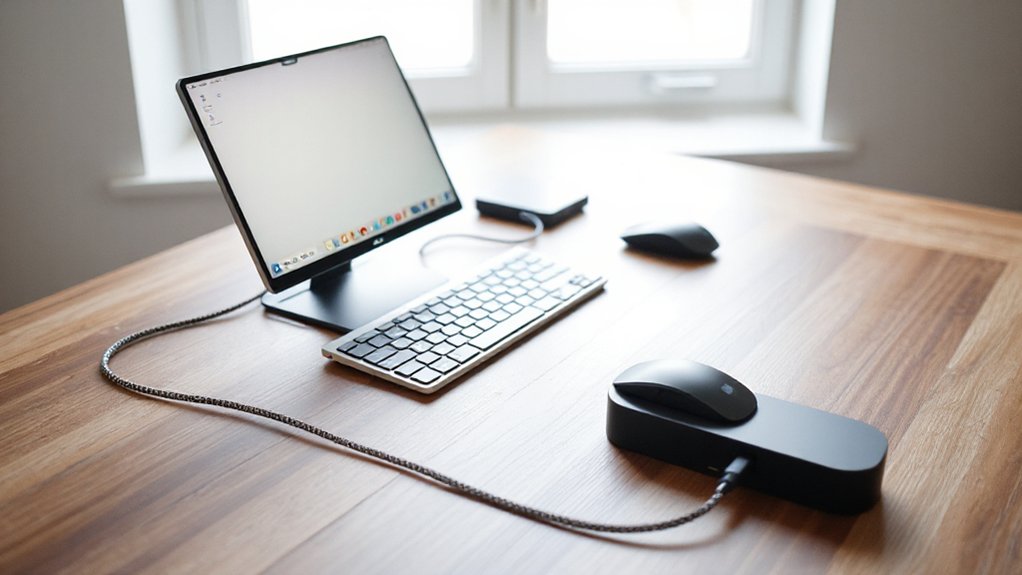
You can keep your desktop visually quiet by routing power bricks and excess cord into an under-desk cable tray, freeing surface space without adding bulk.
You’ll guide everyday leads with magnetic cable clips so they land exactly where you want them and disappear when you don’t.
You’ll finish the look with braided cable sleeves that match your palette, resist fraying, and turn loose lines into one clean, tactile run.
Under-Desk Cable Trays
Because cables multiply the moment you plug in a laptop, an under-desk cable tray turns that visual clutter into a single, tidy channel. You reclaim negative space instantly, so your desktop looks intentional instead of improvised.
Mount one in powder-coated steel for rigidity, or recycled aluminum for a lighter, premium finish. A mesh design breathes, prevents heat buildup around power bricks, and keeps cords from sagging into your knees. Route everything toward the rear edge, then leave the surface open for an ergonomic keyboard and a clean writing zone.
With the floor cleared, your chair glides smoothly and you vacuum faster. The tray also elevates your styling: hide adapters, showcase decorative desk plants, and let wood grain, leather, or matte laminate read uninterrupted.
Choose screw-in for permanence, clamp-on for rentals.
Magnetic Cable Clips
Once you’ve hidden the bulk in an under-desk tray, magnetic cable clips handle the last 10% that makes a setup look truly finished. You guide charging cords, keyboard leads, and audio cables exactly where your hands expect them, without visual noise.
Choose low-profile clips in anodized aluminum or matte silicone so they blend with your desk’s finish and won’t scuff wood or laminate. A strong magnet keeps lines anchored yet lets you reroute in seconds when you swap devices.
Place a clip at the desk edge for daily plug-ins, one behind your monitor stand for clean vertical drops, and one near a dock to prevent tangles. This tiny hardware upgrade elevates desk organization while preserving surface space and a calm, gallery-like look.
Braided Cable Sleeves
Magnetic clips tame the endpoints, but braided cable sleeves make the mid-span disappear. You slide one over charging cords, monitor leads, and Ethernet, then cinch it tight so everything reads as a single, calm line. The result looks intentional, not improvised, and your desk surface feels wider instantly.
Choose PET or nylon weave for abrasion resistance and a soft hand; pick a neutral tone to match your setup. Split sleeves let you branch to a dock without bulk, and they compress neatly under a monitor riser. Route the bundle behind ergonomic keyboard stands so nothing brushes your wrists or snags your chair.
When you reconfigure, you unzip, add a cable, and close—no sticky residue, no plastic clutter, no visual noise.
Focus and Workflow Boosters: Timers, Buttons, Automations

You keep your workflow crisp with a Pomodoro timer that stays put—weighted base, matte finish, no sprawling footprint.
Then you add a one-tap automation button in brushed metal or soft-touch plastic that triggers your focus scene: lights, music, and notifications cut.
These compact tools earn their space by turning intention into action, instantly.
Pomodoro Timers That Stick
If your focus tends to fray between tabs and pings, a Pomodoro timer gives your day a clean edge: one compact object that turns intention into repeatable rhythm. Choose a palm-sized cube or slim dial that sits flush beside your keyboard, not screaming for attention. Matte aluminum, soft-touch silicone, or FSC wood keeps the look calm and the footprint light, while a weighted base prevents slide.
You’ll lock into Pomodoro techniques with tactile starts, quiet haptics, and a face you can read at a glance. Favor timer customization—25/5, 50/10, or deep-work sprints—so your workflow matches your energy.
A dimmable ring or e-ink display stays legible without glare, and a mute mode keeps calls clean. It’s a tiny anchor for consistent output.
One-Tap Automation Buttons
When your day runs on tiny repeatable actions, a one-tap automation button turns them into a single, satisfying press. You’ll mute notifications, start a focus playlist, set your lights to a calm temperature, and launch your daily apps without touching a menu.
Choose a slim, matte button in aluminum or recycled plastic, with a soft-travel click that feels intentional, not toy-like. Place it beside your ergonomic keyboard so your hand stays centered and your reach stays minimal. Mount it with low-residue adhesive to keep your surface clean and cable-free.
Pair it with scenes like “Deep Work,” “Stand Up,” or “Wrap Up,” then let the desk stay quiet. It also frames your decorative desk plants like a curated vignette, not clutter.
Conclusion
You’ve got everything you need to turn your desk into a calm, capable command center. Choose accessories that fit your space, match your devices, and respect your budget—then let them disappear into the background. A USB-C hub, a slim wireless pad, and a clean light bar stack function without visual noise. Add crisp audio and disciplined cable routing, and clutter can’t compete. Less mess, more momentum—because your workspace should work for you.